Authentication is the backbone of securely using the Google Ads API. From managing sensitive data to avoiding disruptions caused by token expiration, developers face several challenges. Key takeaways:
- OAuth 2.0: Use secure flows and scopes (
https://www.googleapis.com/auth/adwords) for access. - Token Management: Refresh tokens before expiration and store them securely using tools like Google Cloud Secret Manager.
- Service Accounts: Ideal for automation; protect keys with encryption and secret management tools.
- Access Control: Use role-based permissions and the
login-customer-idheader for manager accounts. - Compliance: Follow GDPR/CCPA guidelines and audit permissions regularly.
Avoid storing sensitive credentials in version control and always encrypt stored tokens. Monitoring error rates and logging request-id values can help troubleshoot issues efficiently.
Google Ads API Auth Series - Introduction
sbb-itb-89b8f36
Common Authentication Challenges in Google Ads API
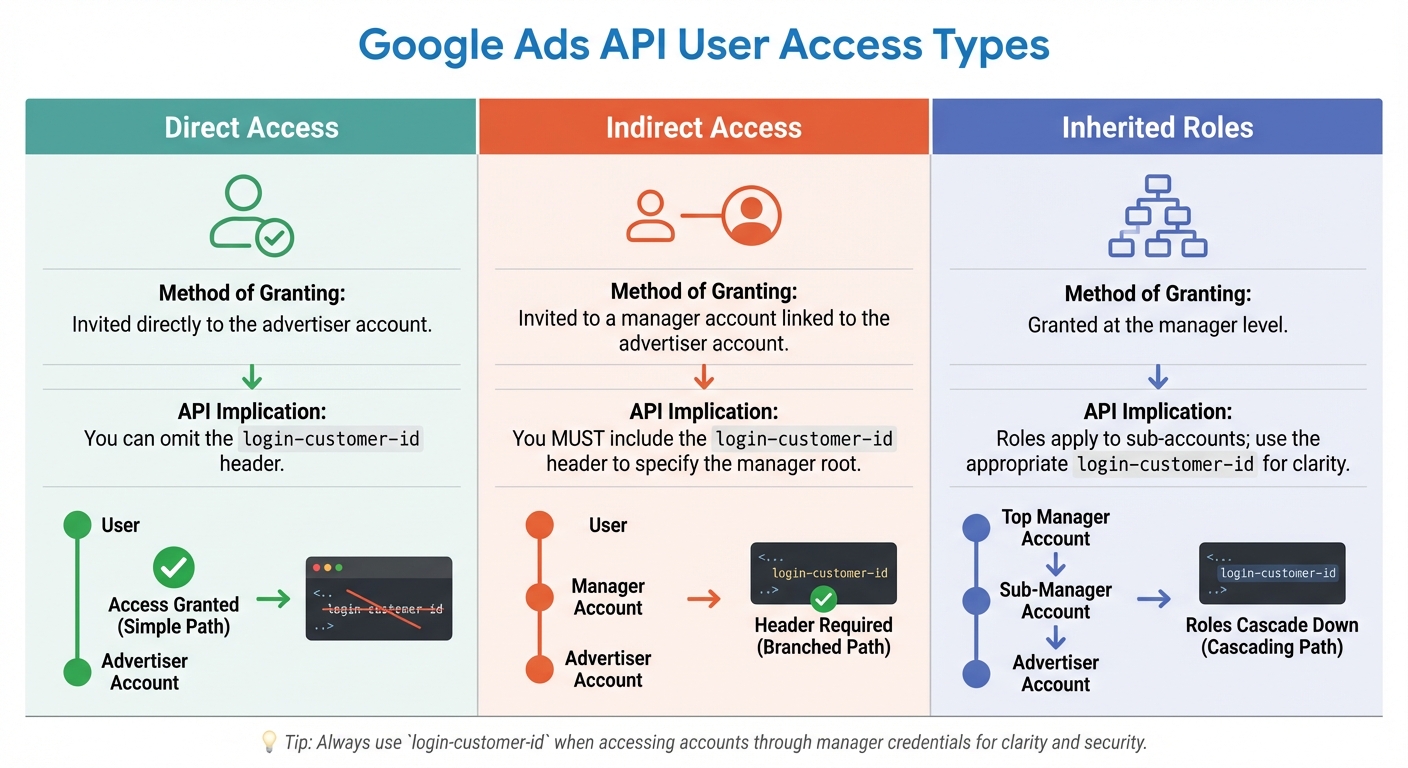
Google Ads API User Access Types and Authentication Requirements
Token Expiration and Renewal Problems
Access tokens in the Google Ads API have a short lifespan, expiring just one hour after they’re issued. This can disrupt automated workflows like reporting, bid management, or syncing data unless a new token is promptly generated.
To address this, refresh tokens allow you to obtain new access tokens without requiring user intervention. However, there’s a catch: if your project is in "Testing" mode and includes external users, refresh tokens will expire after 7 days. To bypass this limitation, consider transitioning your project to "In production." If you’re building a custom solution, it’s a good idea to trigger a token refresh when there are fewer than five minutes left before expiration. Fortunately, Google’s official client libraries handle token expiration and renewal for you, making this process seamless.
Now, let’s look at how to safeguard against exposed credentials.
Exposed Credentials and Security Risks
If a service account key, developer token, or OAuth secret is leaked, it can give unauthorized users persistent access to your Google Ads accounts. This poses a serious security risk.
To protect these credentials:
- Use a dedicated secrets manager like Google Cloud Secret Manager for secure storage.
- Avoid committing sensitive credentials to version control repositories.
- Encrypt tokens when storing them to add an extra layer of security.
Next, we’ll dive into the challenges related to accessing accounts through manager accounts.
Manager Account Access Limitations
Google Ads accounts are structured hierarchically, with manager accounts holding indirect access to advertiser accounts. This setup can make tracking permissions more complicated. For example, the CustomerService.ListAccessibleCustomers method only retrieves accounts you can access directly.
When using manager account credentials to act on behalf of a client, you must include the login-customer-id header. This ID should be formatted as a plain number without hyphens (e.g., 1234567890) to avoid authentication errors. To access all accounts you’re authorized for, start by calling ListAccessibleCustomers to get a list of IDs, then use each ID as the login-customer-id.
Here’s a quick summary of how user access types affect API calls:
| User Access Type | Method of Granting | API Implication |
|---|---|---|
| Direct Access | Invited directly to the advertiser account | You can omit the login-customer-id header. |
| Indirect Access | Invited to a manager account linked to the advertiser account | You must include the login-customer-id header to specify the manager root. |
| Inherited Roles | Granted at the manager level | Roles apply to sub-accounts; use the appropriate login-customer-id for clarity. |
These steps and precautions can help you navigate the complexities of manager account access while maintaining security and functionality in your API workflows.
How to Implement OAuth 2.0 Authentication
To address the challenges mentioned earlier, follow these OAuth 2.0 practices to ensure secure and efficient integration.
How to Set Up Developer Tokens
A developer token is essential for every Google Ads API call and must be included in the developer-token HTTP header. You can get this token from the API Center in your manager account. While it provides access to the API, it doesn’t grant advertiser-level permissions.
When you request a developer token, Google reviews your application to confirm it aligns with their policies. During the development phase, you’ll likely receive a test token that works exclusively with test accounts. Once your application is production-ready, you need to apply for a standard or basic access token. Avoid committing your developer token to code repositories - instead, store it securely using tools like Google Cloud Secret Manager.
After securing your developer token, the next step is selecting the appropriate OAuth flow for your application.
Selecting the Right OAuth Flow
The OAuth flow you choose depends on how your application interacts with Google Ads accounts. For automated, server-side processes, use a service account, which ensures long-term stability. If you’re managing your own accounts with a small team, the single-user flow is a good option - generate a refresh token once using available tools. For third-party applications where users log in to grant access, implement the multi-user web flow, which includes a consent screen. Keep in mind that this requires Google App verification.
All OAuth flows must use the scope https://www.googleapis.com/auth/adwords. For web applications, set the access_type parameter to offline during the OAuth flow to receive a refresh token. Desktop applications typically have offline access enabled by default.
Once you’ve chosen the correct flow, focus on securing refresh tokens to maintain safe and uninterrupted access.
How to Manage Refresh Tokens Securely
Refresh tokens allow you to obtain new access tokens without requiring users to log in again. To keep these tokens secure, store them in a secrets manager like Google Cloud Secret Manager, HashiCorp Vault, or AWS Secrets Manager. Always encrypt tokens at rest and ensure API communications are protected with TLS.
Access tokens expire after one hour, so reuse them until they’re close to expiring. Official client libraries handle this automatically for you. If a user’s access is no longer needed, revoke the refresh token immediately and delete it from your system. For applications needing real-time updates on token revocation, implement Cross-Account Protection to receive notifications.
Service Account Authentication Security
Service accounts are a secure way to automate Google Ads API integrations, but they come with their own set of security challenges. Managing keys properly and staying vigilant are critical to preventing unauthorized access.
Creating and Protecting Service Account Keys
When you create a service account in Google Cloud, it generates a JSON file containing private credentials. Think of this file as a password - it should never be shared through email, stored in repositories, or embedded in binaries.
"Treat your service account key and JSON file as passwords. Secure them using a secret manager such as Google Cloud Secret Manager or AWS Secret Manager when possible."
To keep these keys safe, store them in secret management tools like Google Cloud Secret Manager or AWS Secret Manager. Additionally, enable secret scanning tools like truffleHog to catch accidental exposures. For even stronger security, hardware solutions like Hardware Security Modules (HSM) or Trusted Platform Modules (TPM) ensure private keys are never exposed in plain text. Another option is to set the "Service Account Key Exposure Response" policy to DISABLE_KEY, which lets Google Cloud automatically disable keys if they’re detected in public spaces.
Starting May 3, 2024, Google will enforce stricter constraints, disabling service account key creation and uploading by default for newly created organizations. Google Cloud also offers insights to help you identify and clean up service accounts that haven’t been used in the past 90 days.
Linking Service Accounts to Customer IDs
Google has made it easier to link service accounts to Google Ads accounts. As of November 2024, you can navigate to Admin > Access and Security in the Google Ads interface, click the + button under the Users tab, and enter your service account's email address. Assign the least privileged access level - Read-only, Standard, or Admin - based on your application’s needs. This update eliminates the need for domain-wide delegation or Google Workspace configurations.
To ensure better security and accountability, create separate service accounts for each application or workload instead of sharing one across multiple projects. This approach helps maintain clear audit trails and simplifies access revocation when an application is decommissioned. Use descriptive names like ads-reporting-prod@... to make it easy to identify the account’s purpose and environment. If you encounter a NOT_ADS_USER error, check that the service account email has been explicitly invited and approved in the relevant Google Ads Customer ID or Manager Account.
Once your keys are secure and service accounts are properly linked, the next step is to focus on preventing unauthorized access.
Preventing Unauthorized Access
Key protection is just the beginning - continuous monitoring is equally important.
Use the "Key Authentication Events" metric to track how often your service account keys are being used. Regularly rotate keys to reduce the risk of long-term exposure. Google Cloud’s security guidance emphasizes:
"Service account keys can become a security risk if not managed carefully. You should choose a more secure alternative for authentication whenever possible."
If you suspect a key has been compromised, delete it immediately in the IAM console. Simply removing it from a repository isn’t enough, as version history might still retain the credential. Regularly audit the "Access and Security" section in your Google Ads account to remove inactive service accounts. For environments with strict compliance requirements, export audit logs to BigQuery or Cloud Storage to maintain long-term records of service account activity.
Compliance and Access Management
Managing access and adhering to legal standards is just as important as protecting keys and tokens when working with Google Ads integrations.
Setting Up Role-Based Access Controls
Effective compliance and access management start with clear user roles. The Google Ads API uses the same role structure as the Google Ads UI, meaning there’s no separate access model to learn. Access permissions align with your account hierarchy, from manager accounts to individual advertiser accounts or PPC agencies. If a user holds multiple roles at different levels, the login-customer-id header in your API request determines which role applies.
When performing actions on sub-accounts, always include the manager account’s customer ID in the login-customer-id header. This ensures the correct level of authorization is applied. For internal tools, it’s better to use service accounts instead of individual employee credentials. This way, access remains uninterrupted if an employee leaves your company. Assign only the access level required - Read-only, Standard, or Admin - by adding the service account’s email as a user in the Google Ads UI.
Once roles are properly defined, maintaining strict privacy practices becomes essential for compliance.
Meeting GDPR and CCPA Requirements
Compliance with regulations like GDPR and CCPA requires ongoing diligence and careful access control. Noncompliance can result in hefty penalties.
"GDPR isn't background noise. It now shapes whether campaigns run, whether measurement is accurate, and whether audiences can be reached at all." - CookieScript
If a user revokes access to your application, permanently delete their tokens instead of simply invalidating them. Use the Cross-Account Protection service to get real-time notifications when users revoke access. Store and encrypt credentials securely. Keep a detailed Record of Processing Activities, documenting the types of data you collect (e.g., emails, cookie IDs, IP addresses), how you collect it (e.g., API, pixels), and how long you retain it. For Google Ads and retargeting, consent is generally the only valid legal basis under GDPR, as "legitimate interest" rarely applies to behavioral advertising.
Security Monitoring and Audits
Every API response includes a request-id, which should be logged for security audits and troubleshooting with Google support. Before storing or sharing logs, remove any sensitive information. Keep an eye on error rates and specific errors, such as AuthenticationError.OAUTH_TOKEN_REVOKED, to address issues quickly.
If you suspect that a developer token or client secret has been compromised, reset it immediately through Tools & Settings > API Center in your Google Ads manager account. Regularly revoke access for third-party applications that are no longer in use. Use the validate_only field in API requests to check for policy violations or structural errors without executing the operation. You can also audit which accounts your credentials can access by using methods like list_accessible_customers.
Conclusion and Key Takeaways
Summary of Authentication Best Practices
To keep your authentication strategy solid, focus on these essential practices: store all credentials securely using tools like Google Cloud Secret Manager, encrypt tokens when they're not in use, and make sure to use each access token for its full one-hour lifespan. For automated workflows, rely on service accounts instead of tying credentials to individual employees. Also, ensure your testing and production environments are entirely separate to avoid accidental changes to live accounts.
Maintaining Security Over Time
Keeping authentication secure requires constant vigilance. Watch error rates closely - Google may throttle applications with consistently high error levels. Always log the request-id from HTTP response headers for every API call; this unique identifier is crucial when working with Google support to resolve issues. If you suspect any credentials have been compromised, reset them immediately through Tools & Settings > API Center in your Google Ads manager account. Regularly audit third-party access and revoke permissions that are no longer needed. Use offline jobs, like cron tasks, to spot expired or revoked refresh tokens before they lead to repeated failed requests.
Additional Resources
To further enhance your PPC campaigns while maintaining strong authentication, check out the Top PPC Marketing Directory at https://ppcmarketinghub.com. This platform connects you with specialized tools, agencies, and services for campaign management, bid optimization, and seamless Google Ads API integration. These resources can help you keep your paid advertising secure and effective.
FAQs
Which OAuth flow should I use for my Google Ads API app?
When deciding on an OAuth 2.0 flow for your app, it's important to consider its specific requirements. If your app needs to access user data, go with the multi-user flow for user authorization. On the other hand, if your app requires server-to-server communication without user involvement, the service account flow is the right choice. The Google Ads API supports both options, ensuring flexibility for different use cases.
How can I safely store and rotate refresh tokens and service account keys?
To keep refresh tokens and service account keys for the Google Ads API safe, rely on a secrets manager. This helps protect private keys and ensures they don’t end up in public repositories. Always encrypt refresh tokens when stored, limit access to them, and keep an eye on their expiration or potential revocation. Stick to your security policies by rotating credentials regularly, and if any keys are compromised, revoke or delete them immediately to minimize risks.
When do I need the login-customer-id header, and what should it be?
When making API calls with a Google Ads manager account, you need to include the login-customer-id header. This header identifies the root account used for authorization and access. Make sure to set it to either the customer ID of the manager account or the specific account you're managing. This ensures your requests are authenticated and have the correct permissions.