Testing landing page accessibility is essential for ensuring your website is usable by everyone, including individuals with disabilities. This is not only a legal requirement under standards like WCAG and regulations such as the ADA and EAA but also a way to improve user experience and boost your PPC campaign performance. Accessible pages reduce bounce rates, enhance SEO, and increase conversions while avoiding costly lawsuits and fines.
Here’s a quick overview of the best accessibility testing tools:
- Silktide Toolbar: User-friendly Chrome extension for non-developers with automated checks, simulators, and focus tracking.
- WAVE by WebAIM: Visual overlay tool highlighting errors directly on your page; ideal for content editors.
- AChecker: Web-based tool providing detailed reports and manual testing recommendations.
- Axe DevTools: Developer-focused tool with CI/CD integration and AI-guided tests for advanced issue detection.
- accessiBe accessScan: AI-powered scanner offering quick compliance snapshots for marketing teams.
Key takeaway: Use a mix of automated tools and manual methods (like keyboard navigation and screen reader testing) to catch all accessibility issues. This approach ensures your site is user-friendly, compliant, and optimized for better PPC results.
Quick Comparison
| Tool | WCAG Levels Supported | Scan Type | Pricing | Best Use Case |
|---|---|---|---|---|
| Silktide Toolbar | 2.0, 2.1, 2.2 (A, AA, AAA) | Automated + Simulation | Free Chrome extension | Great for non-technical users |
| WAVE | 2.1, 2.2 (AA) | Visual Overlay | Free; API starts at $0.25/credit | Ideal for content editors |
| AChecker | 2.0, 2.1 (A, AA, AAA) | Web-based | Free; Paid plans start at $99/month | Best for browser-based audits |
| Axe DevTools | 2.1, 2.2 (AA) | Automated + Guided | Free; Pro starts at $40/month | Perfect for developers and QA teams |
| accessiBe accessScan | 2.1, 2.2 (AA) | Automated (AI) | Free; Widget starts at $49/month | Useful for quick pre-launch checks |
Combining these tools with manual testing methods like keyboard navigation and screen reader checks ensures your landing pages are accessible to all users, improving both usability and compliance.
Accessibility Testing Tools To Know | Web A11Y Tools
sbb-itb-89b8f36
Why You Should Test Landing Page Accessibility
Testing your landing pages ensures they are usable by everyone, removing barriers that might otherwise exclude millions of potential customers. An inaccessible website can prevent users with vision, hearing, mobility, or cognitive impairments from using your site effectively. This not only limits your audience but also reduces potential revenue.
The legal risks are becoming harder to ignore. In 2024 alone, over 4,000 ADA-related digital accessibility lawsuits were filed in U.S. courts. Experts predict this number could approach 5,000 by the end of 2025. For businesses operating in Europe, the European Accessibility Act (EAA), which takes effect in June 2025, adds another layer of compliance requirements. Failing to meet these standards not only puts you at risk for lawsuits but can also damage your brand’s reputation, especially as more consumers prioritize companies that demonstrate social responsibility and inclusivity.
Accessibility testing isn’t just about compliance - it’s about improving the experience for all users. Features like clear form labels, well-organized headings, and high-contrast buttons don’t just help users with disabilities; they also make your site easier to navigate for everyone. Achieving these benefits requires a combination of automated and manual testing.
Automated tools are great for quickly identifying technical issues, such as missing alt text or poor color contrast. However, they only catch about 25% to 40% of WCAG violations. Manual testing is indispensable for uncovering more complex issues, like keyboard traps, confusing screen reader navigation, or unclear alt text descriptions.
"No automated evaluation tool can tell you if your site is accessible, or even compliant. Human testing is always necessary because accessibility is about the human experience" - WebAIM
Combining both methods ensures no critical detail is missed.
A real-world example highlights the impact of this approach. In 2024, a mid-sized eCommerce store addressed accessibility issues by fixing hundreds of images without alt text and replacing color-only indicators. Their accessibility score jumped from 65% to 98% in just 48 hours. This blend of automation for speed and manual testing for precision is essential for creating landing pages that are both user-friendly and compliant.
Best Tools for Testing Landing Page Accessibility
Choosing the right tool for accessibility testing depends on your background and what you're looking to achieve. Some tools are built for developers to catch issues during coding, while others cater to marketers or content creators who need to ensure accessibility without diving into code. Here are five tools that cater to different levels of expertise and needs.
Silktide Toolbar
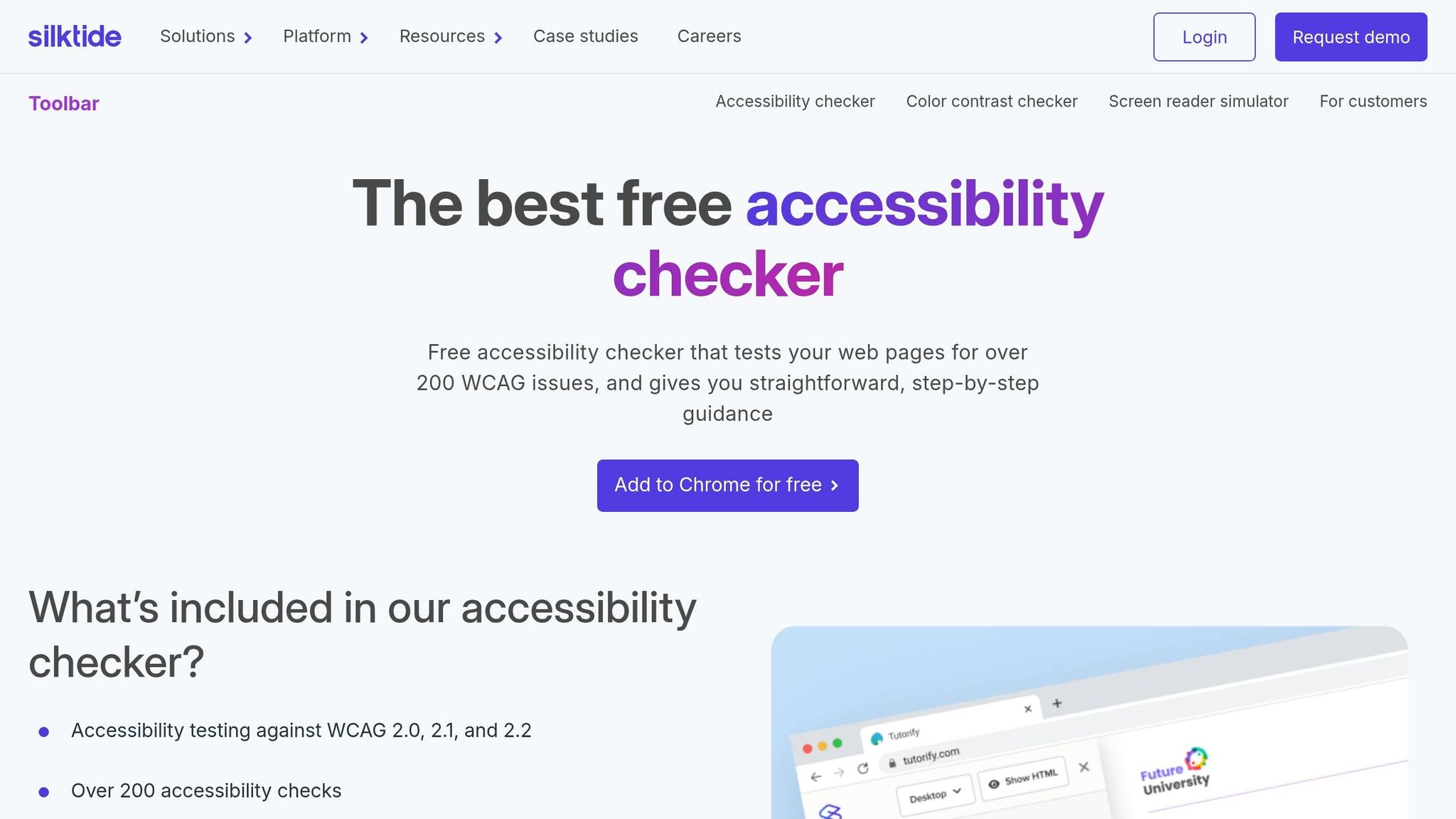
Silktide Toolbar is a free Chrome extension that’s perfect for non-developers. It performs over 200 automated WCAG checks, covering versions 2.0, 2.1, and 2.2 at Levels A, AA, and AAA. What sets it apart is its user-friendly approach - issues are explained in plain language. It also includes:
- A built-in color contrast checker with a color picker.
- Validation for image alt text.
- Visual tracking of focus order for keyboard navigation.
- Disability simulators for conditions like dyslexia and color blindness.
- A simple screen reader simulator.
"Often, accessibility checkers are developer-focused, filled with jargon, and fairly ugly. So we decided to make ours different. We focused on creating a better user experience aimed at everyone, regardless of their accessibility knowledge." – Silktide
"Genius. You have made accessibility testing fun! All the most needed things in one place." – David, Chrome Store Review
This tool is a great starting point for those new to accessibility testing.
WAVE by WebAIM
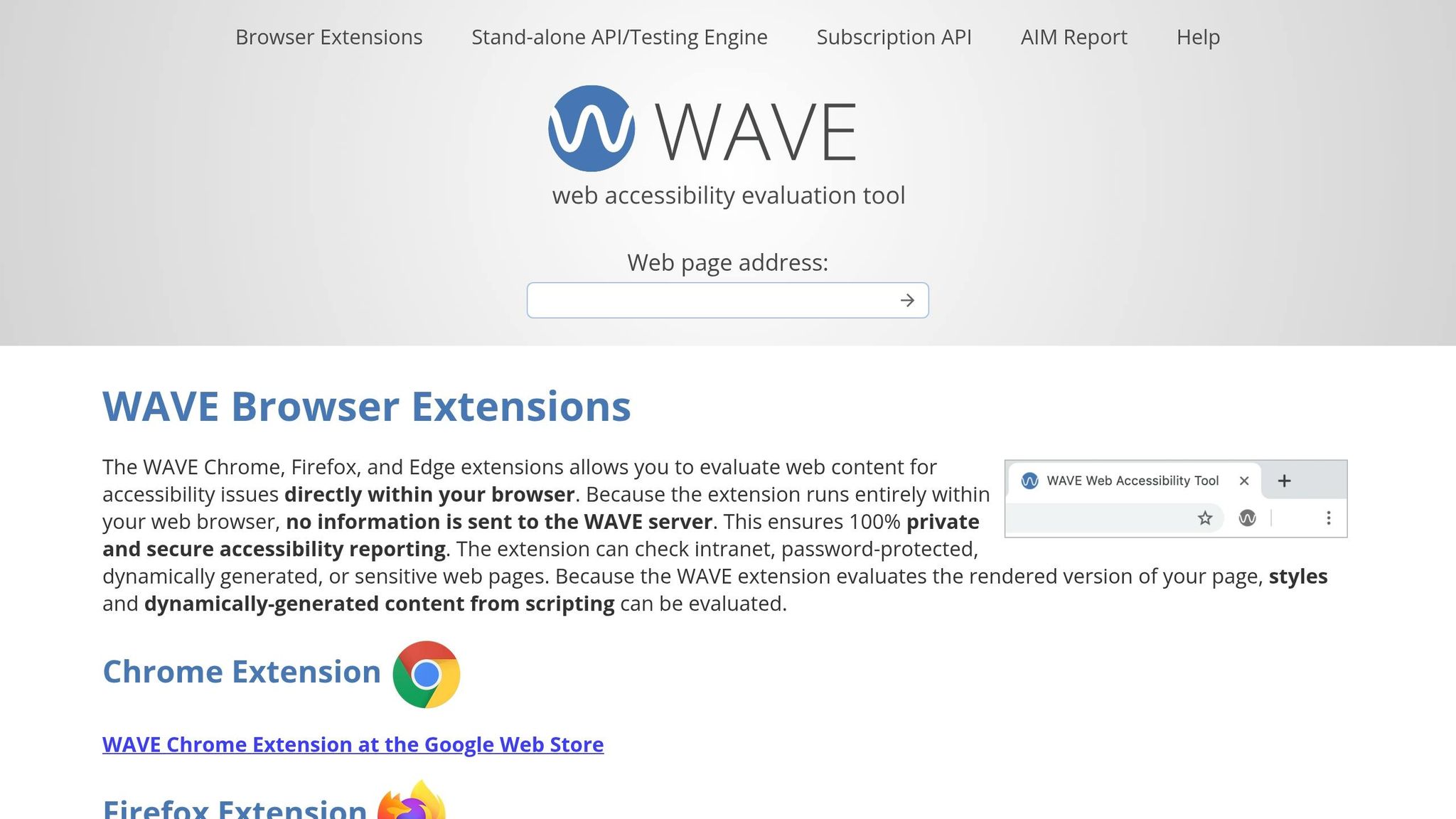
WAVE is a free browser extension available for Chrome, Firefox, and Edge. It overlays icons on your webpage to highlight errors and alerts, making it easy to spot issues. It also features panels for assessing heading structure and color contrast. Since WAVE runs entirely in your browser, your data stays private - nothing is sent to external servers. It’s a trusted tool, with a 4.1-star rating on the Chrome Web Store.
AChecker
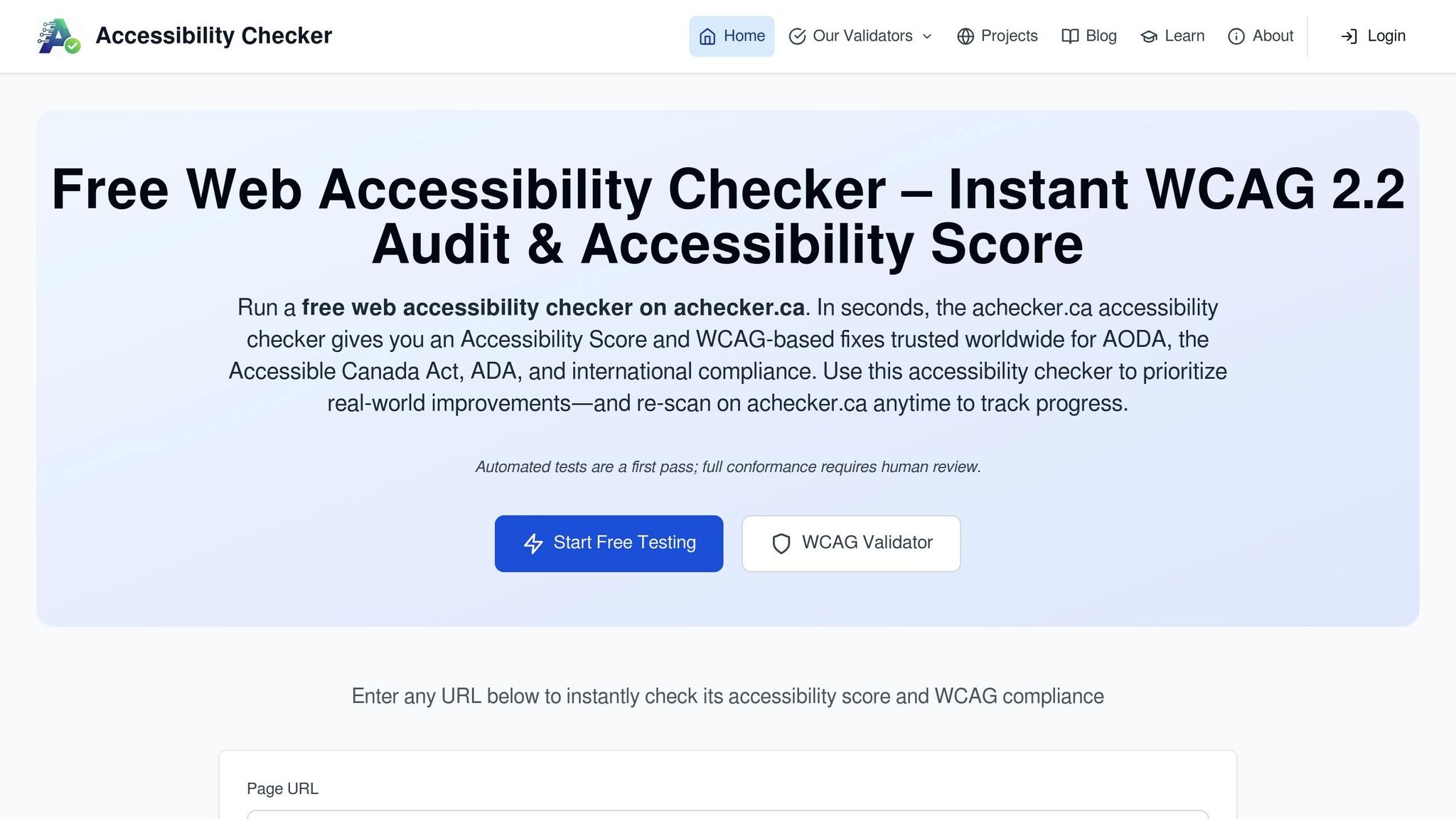
AChecker is a web-based tool that scans your site and provides an overall accessibility score. It categorizes WCAG failures into three groups: Known Problems, Likely Problems, and Potential Problems. You can submit a URL or upload HTML to generate a detailed report. AChecker also recommends manual testing steps for areas where automation falls short, ensuring a thorough review.
Axe DevTools by Deque
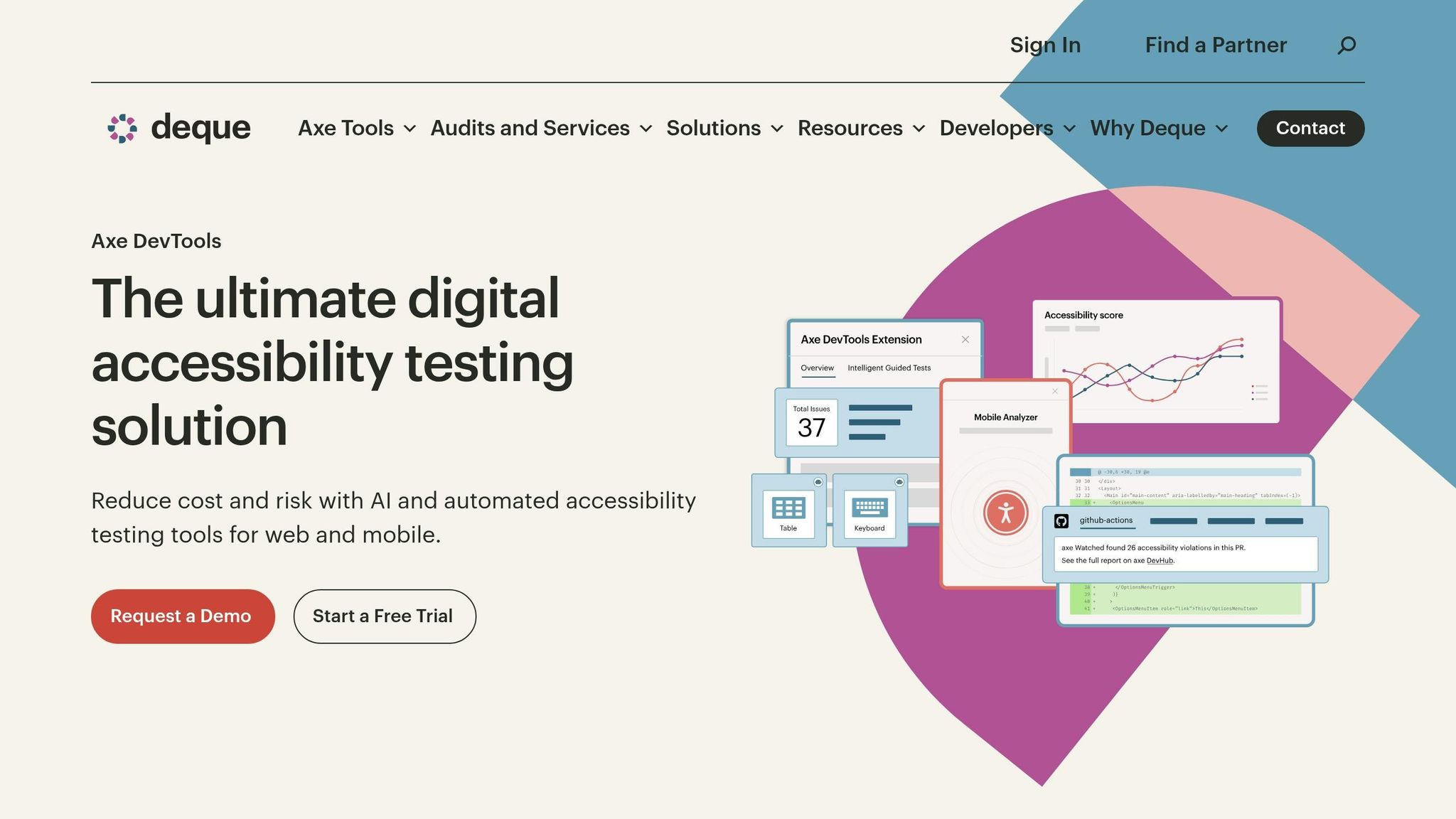
Axe DevTools is a go-to option for developers, powered by the widely used axe-core engine, which has been downloaded over 3 billion times. This tool integrates directly into your browser’s DevTools and works seamlessly with CI/CD pipelines.
- The free version offers automated, page-by-page testing.
- The Pro version (starting at $40+/month) includes AI-driven Intelligent Guided Tests to identify complex issues that automation might miss.
In a test against 47 known WCAG violations, Axe DevTools identified 78% of issues with zero false positives. It checks against WCAG 2.0, 2.1, and 2.2 standards and has a 3.9-star rating on the Chrome Web Store.
"Axe-core, which powers the Axe DevTools Extension, has been downloaded more than 3 billion times." – Deque Systems
This tool is a strong choice for developers and QA teams needing precise accessibility checks.
accessiBe accessScan
accessiBe accessScan is an AI-powered tool designed for quick and straightforward accessibility reports. It highlights gaps in your current setup and offers actionable fixes without overwhelming you with technical jargon. It’s especially useful for marketing teams who need to ensure their landing pages meet accessibility standards before launching campaigns. Pricing starts at $49+/month.
Each of these tools brings something different to the table, making it easier to find one that fits your specific needs and skill level.
Tool Comparison Table
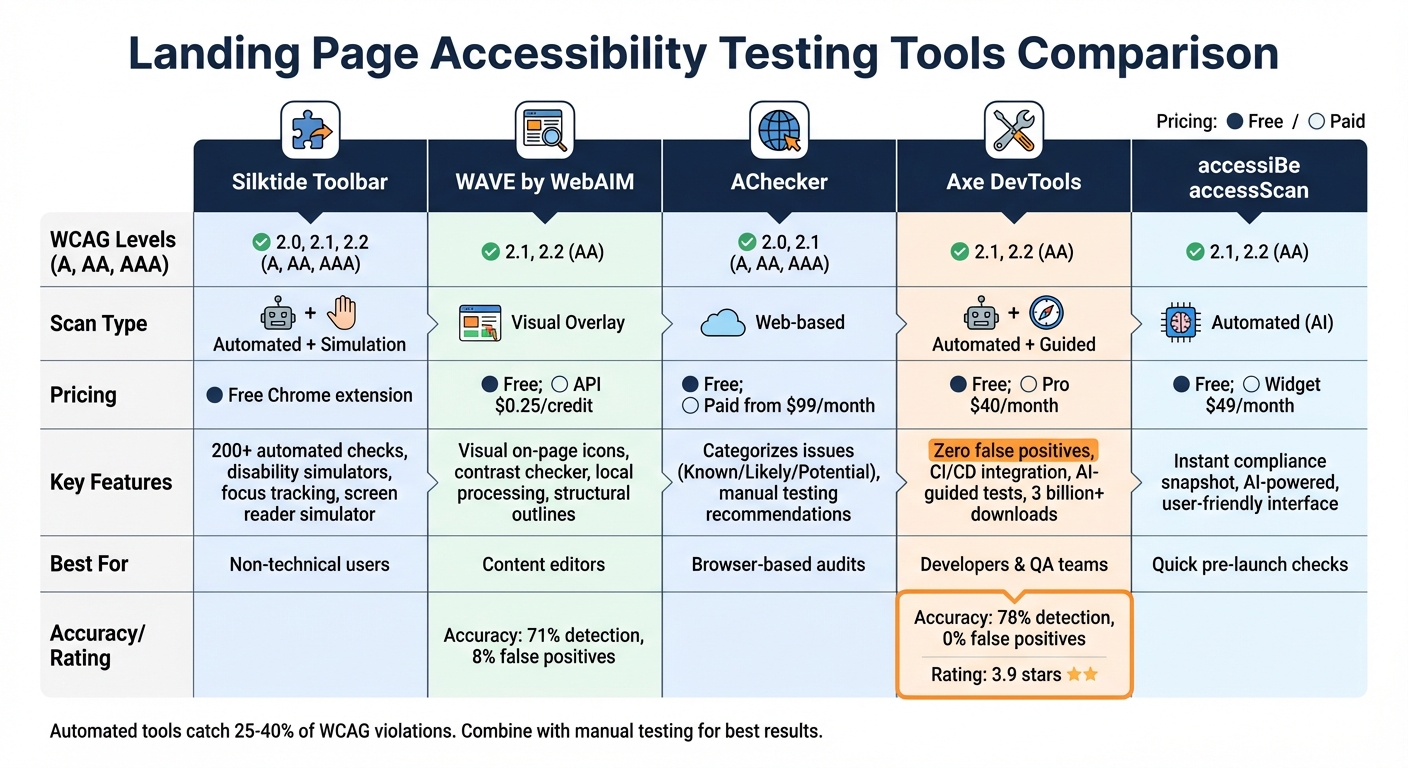
Landing Page Accessibility Testing Tools Comparison Chart
Find the tool that aligns with your role - whether you're a developer, content editor, or small business owner - by comparing key features side by side. These tools are designed to enhance landing page accessibility, which is critical for better PPC campaign outcomes. Here's a detailed breakdown to help you make an informed choice.
| Tool | WCAG Levels Supported | Scan Type | Pricing | Key Features | Best Use Case for Landing Pages |
|---|---|---|---|---|---|
| Silktide Toolbar | 2.0, 2.1, 2.2 (A, AA, AAA) | Automated + Simulation | Free Chrome extension | Automated checks, disability simulators (dyslexia, color blindness), focus order tracking, screen reader simulator | Ideal for non-technical users needing simple explanations and user experience simulations |
| WAVE | 2.1, 2.2 (AA) | Visual Overlay | Free browser extension; API starts at $0.25–$0.40 per credit | Visual icons for on-page issues, structural outlines, contrast checker, local processing (no server data) | Great for content editors conducting visual audits without diving into code |
| AChecker | 2.0, 2.1 (A, AA, AAA) | Web-based | Free (open-source); Paid plans start at $99/month | Categorizes issues as Known/Likely/Potential, customizable guidelines, manual testing recommendations | Best for browser-based audits, especially in academic or government settings |
| Axe DevTools | 2.1, 2.2 (AA) | Automated + Guided | Free browser extension; Pro starts at $40/month | Zero false positives, IDE and CI/CD integration, AI-guided tests (Pro version) | Perfect for developers debugging during coding and QA teams needing accurate checks |
| accessiBe accessScan | 2.1, 2.2 (AA) | Automated (AI) | Free web-based scanner; accessWidget starts at $49/month | Instant compliance snapshot, flags visible barriers, user-friendly interface | Best for small businesses wanting quick accessibility checks before launching campaigns |
This table lays the groundwork for understanding how these tools perform in actual scenarios. Performance comparisons reveal their strengths, helping you narrow down your options.
In tests against 47 known WCAG 2.2 violations, Axe DevTools emerged as the most precise tool, identifying 78% of detectable issues with zero false positives. WAVE, while slightly less accurate (71%), is highly user-friendly, though it had an 8% false positive rate. By contrast, Google Lighthouse lagged behind, identifying only 52% of issues. This makes Axe DevTools a standout choice for developers needing precise results, while WAVE's visual interface is better suited for non-technical teams.
"Having tools that allow you to automate the scans and integrate them into your build process helps a lot because you don't have to rely on somebody remembering to do it as part of your release process - it just happens automatically." – Bob Andreasen, Executive Director of Software Quality Assurance, Harland Clarke
For PPC landing pages, WAVE and accessiBe accessScan provide the quickest accessibility checks, making them ideal for pre-launch campaigns. On the other hand, Axe DevTools is a great fit for ongoing development, ensuring issues are caught early in the workflow. Selecting the right tool not only ensures compliance but also enhances the effectiveness of your PPC campaigns.
Manual Testing Methods and Tips
Once you've automated your accessibility scans, it's time to complement them with manual testing. Why? Because automated tools can only catch a portion of potential issues - many problems require a hands-on approach to uncover. The best strategy combines automated scans with manual checks for areas like keyboard navigation, screen reader compatibility, and color contrast accuracy.
Keyboard Navigation Testing
Test your landing page by navigating it using only a keyboard. Use the Tab key to move forward through interactive elements and Shift + Tab to move backward. Activate links and buttons with Enter, and use the Spacebar for checkboxes and dropdowns. Here’s what to look for:
- Focus Indicators: Ensure every focusable element has a visible indicator with at least a 3:1 contrast ratio.
- Logical Tab Order: The navigation should follow a logical sequence.
- Keyboard Traps: Watch for areas where focus gets stuck (e.g., modal dialogs) without a way to escape using the Escape key.
This process ensures that users relying on keyboard navigation can interact with your page seamlessly. Once you've completed this, move on to testing with assistive technologies.
Screen Reader Testing
Screen reader testing is another critical step to catch issues that automated tools often miss. Start by having the screen reader list all headings and landmarks to ensure your page has a clear structure with defined regions like the header, main content, and footer. Then, test form fields and interactive elements to confirm they are announced correctly, including their "name, role, and value." Trigger form errors to check if error messages are properly linked to the relevant fields.
Here are some tools to get started:
- NVDA: A free option for Windows users.
- VoiceOver: Built into macOS and iOS devices.
- JAWS: A paid enterprise solution with advanced features.
These tools help ensure your content is understandable and navigable for screen reader users.
Color Contrast Verification
Manual color contrast checks are crucial because automated tools can miss issues in gradients, semi-transparent elements, or images used as backgrounds. Use tools like Chrome DevTools or the Colour Contrast Analyser app to extract HEX or RGB values from your foreground and background elements. Then, verify these values using a contrast calculator.
- Contrast Ratios: Normal text under 24px should meet a 4.5:1 ratio, while larger text should maintain at least 3:1.
- Interactive States: Check hover and focus states manually (:hover and :focus) to ensure they maintain proper contrast.
- Non-Underlined Links: Test three contrasts - link text vs. background, body text vs. background, and link text vs. surrounding content.
This step ensures your page meets accessibility standards for color contrast, making it easier for all users to read and interact with your content.
"A comprehensive accessibility testing plan must include manual testing. As automated testing generally only catches about 20-30% of accessibility errors, without manual testing the majority of issues are going to be missed." – CivicActions
Conclusion
Testing landing page accessibility isn’t just about meeting legal requirements - it’s about reaching millions of potential customers. With 26% of U.S. adults living with some form of disability, failing to make your page accessible can directly hurt your conversion rates. As Christy Smith, an Accessibility Tester, explains:
"If [your page] isn't accessible, you're losing customers. And even if it's technically accessible but a real pain … you're probably still going to lose some customers".
Tools like Silktide Toolbar, WAVE, AChecker, Axe DevTools, and accessiBe accessScan each bring something to the table. For example, Axe DevTools is great for developers, offering zero false positives. Meanwhile, WAVE helps content editors with visual overlays that make spotting issues simple. AChecker and accessScan provide quick compliance snapshots, and Silktide keeps tabs on accessibility over time.
For the best results, combine automated scans with manual testing. Start with automated tools, layer in manual checks, and keep monitoring your pages as you update content or launch new campaigns. This method ensures you catch as many issues as possible and keep your pages accessible long-term.
But accessibility isn’t just about compliance - it’s also good business. Accessible design often aligns with SEO best practices, improving the overall user experience. For instance, in September 2025, NPR reported a 6.86% boost in search traffic after adding transcripts to their audio content. This shows how prioritizing accessibility can drive performance. By adhering to standards like WCAG and the ADA, you’re not only meeting legal obligations but also creating landing pages that convert better and potentially reach 33% more people.
FAQs
Which tool should I start with if I’m not a developer?
AAArdvark is a fantastic starting point. It provides a free, easy-to-use homepage scan, making it ideal for teams that lack developer expertise. Another excellent choice is A11y Lens, a Chrome extension that generates exportable reports, specifically tailored for non-developers. These tools are straightforward and perfect for those just getting started.
How often should I re-test a landing page for accessibility?
Experts suggest re-evaluating landing page accessibility every 4 to 6 months. For websites that don't change often, an annual review is usually enough to stay compliant and fix emerging issues. These regular assessments help keep your pages user-friendly and aligned with updated accessibility standards.
What manual tests catch issues automated tools usually miss?
Manual testing fills in the gaps left by automated tools by focusing on areas that require human judgment. This includes checking keyboard navigation, visually inspecting focus indicators, and assessing usability for elements like clear labels, logical reading order, and barriers to cognitive accessibility. These aspects often go unnoticed by automated tools, making manual evaluation essential for catching subtle but critical issues.