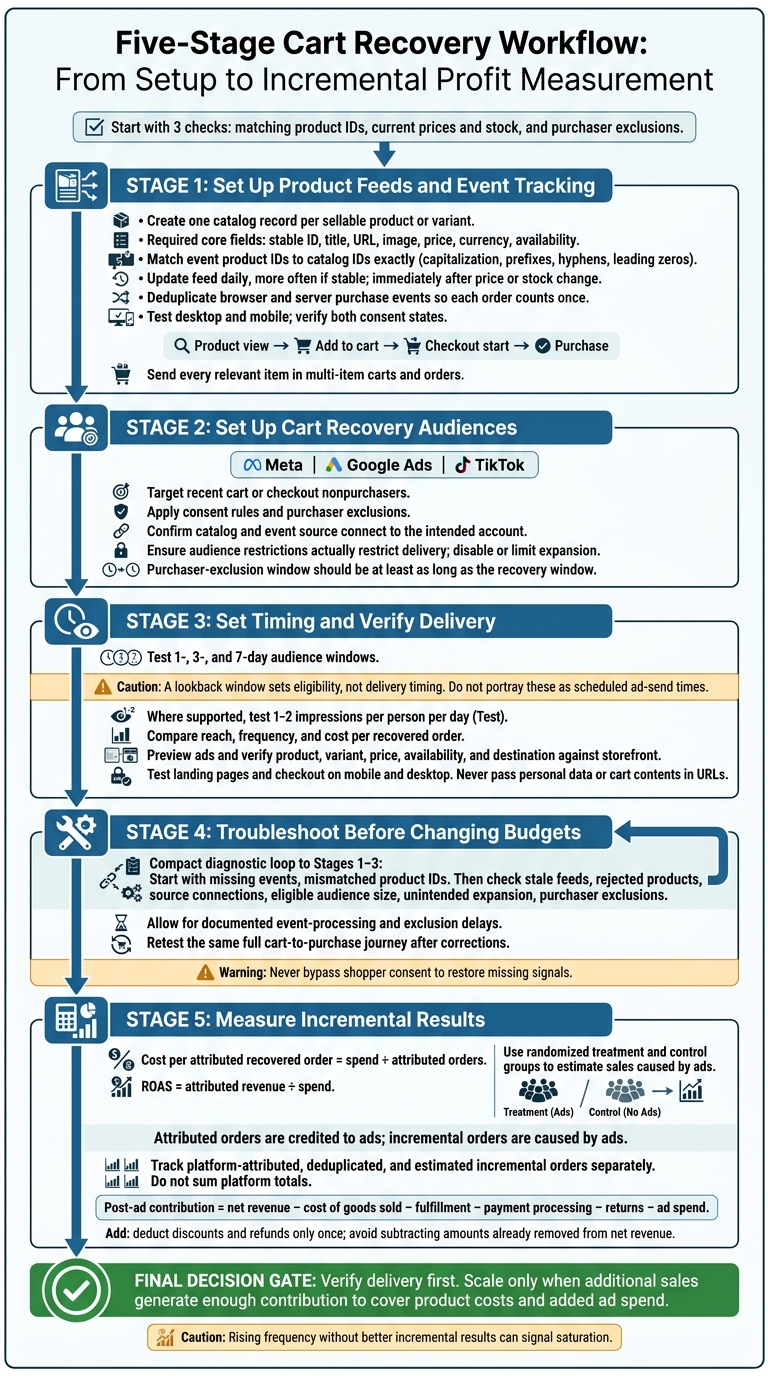
I start cart recovery with 3 checks: matching product IDs, current prices and stock, and purchaser exclusions. Dynamic product ads can remind shoppers about items they left behind, but ad-attributed sales alone don’t prove the ads caused those purchases.
My setup checklist, utilizing top PPC marketing tools, covers:
- Feeds and tracking: Match catalog IDs to product-view, cart, checkout, and purchase events. Count each purchase once.
- Audiences: Target cart or checkout nonpurchasers on Meta, Google Ads, and TikTok, with consent rules applied.
- Timing and delivery: Test 1-, 3-, and 7-day audience windows. These control eligibility, not when an ad appears.
- Troubleshooting: Check missing events, rejected products, landing pages, and exclusion delays before changing budgets.
- Measurement: Track cost per recovered order, revenue, and margin. Use treatment and control groups to estimate sales caused by ads.
My rule for spending more: <u>verify delivery first, then check whether added sales cover product costs and ad spend.</u>
Dynamic Product Ads: Cart Recovery Workflow
Stop Losing Sales With This Google Ads Trick! (Dynamic Remarketing) #googleads #remarketing
sbb-itb-89b8f36
1. Set Up Product Feeds and Event Tracking
Get the feed and event data right first. Every audience rule that follows depends on exact product matching.
Create and Update the Product Catalog
Create one catalog record per sellable product or variant. Each record needs a stable ID, title, URL, image, price, currency, and availability. Add description, brand, category, SKU, and variant or parent-product fields when required.
Keep product IDs unchanged during updates. Format prices and currency consistently as 29.99 and USD; don’t mix symbols, commas, or currencies.
Update the feed at least daily when inventory is stable, and more often when stock or prices change frequently. Update it immediately after a price or stock change. After each update, check for rejected or disapproved products using top PPC tools, missing required attributes, broken product and image URLs, incorrect USD prices, and sellable variants marked unavailable.
Once the catalog is stable, map every event to those same product IDs.
Track Product Views, Cart Adds, Checkouts, and Purchases
Cart recovery needs 4 events: product view, add to cart, checkout start, and purchase. Use the event names for each platform:
- Meta:
ViewContent,AddToCart,InitiateCheckout, andPurchase. - Google:
view_item,add_to_cart,begin_checkout, andpurchase. - TikTok:
ViewContent,AddToCart,InitiateCheckout, andPurchase(orCompletePaymentin legacy implementations).
Include product IDs, quantities where supported, value, and currency. For carts or orders with multiple items, send every relevant item, not just the last product viewed.
Connect the correct Meta Pixel, Google tag or Google Analytics 4 implementation, and TikTok Pixel or Events API to the intended store, catalog, and ad account.
Test the full path on desktop and mobile: product pages, cart pages, checkout, and the order-confirmation page. Test approved, declined, canceled, and refunded orders, and verify both consent states. If browser and server events overlap, configure deduplication so each order is counted once.
Match Event Product IDs to Catalog IDs
Event IDs must match catalog IDs exactly, including capitalization, prefixes, hyphens, and leading zeros. Keep variant and parent-product identifiers consistent.
Google’s dynamic remarketing implementation uses an items array. Each product object must match a feed identifier such as id, item_group_id, or display_ads_id, along with the relevant google_business_vertical. TikTok recommends that at least 80% of retargeting events have Content IDs that match inventory.
Run these checks before launch.
| Requirement | Validation check |
|---|---|
| Stable IDs and variant matching | Compare test-event IDs with catalog IDs. Verify each variant’s destination, price, and availability. |
| Feed updates | Update the feed and inspect diagnostics for rejected items, outdated prices, and incorrect availability. |
| Product-view data | Test desktop and mobile product pages. Confirm product IDs, URLs, values, and currencies. |
| Cart data | Add multiple items and confirm that every added item’s ID is transmitted. |
| Checkout data | Start checkout from a new session. Verify cart IDs and values. |
| Purchase data | Place a test order. Confirm one deduplicated purchase with order ID, value, currency, and all items. |
2. Set Up Cart Recovery Audiences by Platform
Once you’ve verified product IDs and events, build each platform’s recovery audience from recent cart and checkout activity.
| Platform | Catalog source | Event source | Cart audience | Purchaser exclusion |
|---|---|---|---|---|
| Meta | Commerce Manager catalog or commerce integration | Meta Pixel, dataset, app events, or partner integration | Cart or checkout users within the selected window | Purchase event or purchaser custom audience |
| Google Ads | Approved Merchant Center retail products | Google tag with retail dynamic remarketing parameters | Cart or checkout nonpurchasers | Audience or conversion-based exclusion rules |
| TikTok | TikTok Catalog or connected product feed | TikTok Pixel, Events API, or both | Cart or checkout users within the supported window | Purchaser exclusion audience |
Meta: Set Up Catalog Cart Retargeting
In the supported Sales campaign workflow, select your catalog and connect its event source. Set catalog audience controls to include recent cart or checkout users and exclude purchasers. These controls are for cart recovery, not product-viewer or cross-sell audiences.
Use the catalog IDs validated in Section 1. Check that product previews show the correct details and landing pages. Record the lookback window, consent rules, attribution settings, and processing delay. Review expansion controls to make sure the recovery audience restricts delivery, then test a cart-to-purchase journey with the available event diagnostics.
Google Ads: Set Up Retail Dynamic Remarketing
Link Merchant Center to Google Ads and select an eligible retail dynamic remarketing campaign. Use the validated Google tag data to target cart or checkout nonpurchasers, and exclude purchasers through audience rules. Set the audience to Targeting when it must restrict delivery.
Retail dynamic remarketing uses Merchant Center product data, not the non-retail business-data workflow. Check account linking, product approvals, tag parameters, targeting mode, and feed matching. Record the audience window and the processing delay for purchase exclusions.
TikTok: Set Up Catalog Product Retargeting
Connect a supported TikTok Catalog to TikTok Pixel, Events API, or both. Use deduplication where applicable, and confirm that the event source is bound to the catalog.
Using the current campaign type and labels in TikTok Ads Manager, define a cart or checkout audience within the supported window. Then apply a purchaser exclusion audience based on the Purchase event.
Test a cart-to-purchase journey with the available diagnostics. Individual membership may not be visible, and exclusions may take time to apply. Confirm consent rules, audience restrictions, and the documented processing delay. With audiences in place, move to timing and frequency testing in the next step.
3. Set Ad Timing and Verify Delivery
Once audiences are built, timing and delivery determine how often recovery ads reach eligible cart abandoners.
Test Lookback Windows and Ad Frequency
A lookback window sets eligibility, not delivery timing. A user may qualify for 7 days after cart activity, but that window doesn't tell you when an ad will appear. Event processing, matching, consent, auctions, and budget all affect whether and when the user sees an impression.
If audience size allows, test separate groups for recent carts, older carts, and abandoned checkouts, or consult top PPC agencies for advanced segmentation. Choose short, medium, and long windows based on conversion lag and the purchase cycle. Exclude newer cart activity from older groups, and keep checkout users separate from cart-only users where supported.
Start with product reminders. As carts age, test messages about shipping or returns. Cut the older-cart budget before adding discounts.
Where supported, test a frequency cap of 1-2 impressions per person per day. Google Ads offers frequency capping, but the controls vary by campaign type. Compare reach, frequency, and cost per recovered order. Also review exposure from other campaigns, email, and SMS.
Allow time for purchase events to process before treating continued ads as an exclusion failure. If confirmed buyers keep receiving ads, check timestamps and deduplication.
Once timing is set, check that ads and landing pages still match the catalog.
Check Product Ads and Landing Pages
Before increasing spend, preview live ads for high-value products and recently changed inventory. Compare the product, variant, price, availability, and destination with the storefront. Stale feed data can cause mismatches.
Remove unavailable variants and other ineligible items from recovery product sets. Use urgency only when it reflects current inventory, promotion timing, or a shipping cutoff.
Test landing pages on mobile and desktop while logged out and with cookie restrictions enabled. Check that the correct product and variant stay selected and that users can access checkout. Use product links or supported restored-cart links. Never pass personal data or cart contents in URLs. Test expired carts and changed prices, too.
Record feed refresh, event receipt, and delivery times. Increase spend only after ads and destinations stay accurate across multiple refreshes.
If ads still show the wrong product or fail to deliver, move to feed and audience troubleshooting.
4. Troubleshoot Feed and Audience Errors
Use this matrix to find where the failure occurs: feed, event, audience, or delivery.
| Symptom | Probable cause | Diagnostic check | Corrective action |
|---|---|---|---|
| Product IDs don’t match | Identifier mapping error | Event IDs versus catalog IDs | Make event IDs match catalog IDs. |
| Events aren’t firing | Tracking or routing failure | Event receipt and parameters | Test tracking and source connections. |
| Stale feeds | Feed update failure | Last successful fetch and processing status | Fix feed source data, refresh the feed, and verify eligibility. |
| Audience too small | Too little eligible cart activity | Audience size, status, and cart-event volume | Check thresholds, lookback rules, and source alignment before broadening targeting. You can also consult a PPC marketing directory to find specialized retargeting solutions. |
| Unintended expansion | Recovery targeting reaches beyond cart abandoners | Targeting expansion settings | Disable or limit expansion where supported. |
| Purchasers still seeing ads | Purchase suppression failure | Purchase receipt and exclusion settings | Fix exclusion rules and check processing status. |
Start with missing events or mismatched product IDs. These failures have the greatest impact.
Fix Missing Events and Product ID Mismatches
Follow one test cart through product view, add-to-cart, checkout, and purchase. If an event is missing, check tracking and routing. If it arrives but doesn’t match a product, compare the storefront variant ID, feed ID, and transmitted ID. Check spacing, prefixes, and capitalization.
In Meta Events Manager, inspect content_ids, content type, value, currency, and deduplication signals. In TikTok, check content_ID, quantity, price, currency, and value. Confirm that the event source is bound to the catalog. Browser and server copies of the same action should share a deduplication identifier where supported. Never bypass shopper consent to restore missing signals.
Fix Outdated Feeds and Rejected Products
Check the last successful fetch, processing status, update schedule, and rejected-item count. Look for missing attributes, policy issues, image URL problems, landing page issues, and differences in price or availability. Fix the source data, resubmit when needed, and confirm that affected items are eligible.
In Google, verify the Google Ads–Merchant Center link and filter products for dynamic-remarketing eligibility. TikTok diagnostics show the affected product ID, issue, severity, and source feed.
Fix Empty Audiences and Failed Purchaser Exclusions
Confirm that the audience uses the cart event, not just product views, and receives events from the intended source. Check minimum-size thresholds, consent coverage, cart-event volume, and processing delay. Use a 14- or 30-day window only to diagnose low volume. Review purchase intent before making a longer window permanent.
For exclusions, verify the purchase event name, source, identifiers, and campaign, ad-set, or ad-group scope. The purchaser-exclusion window should be at least as long as the recovery window. Disable expansion on recovery campaigns.
Before changing bids or budgets, retest the setup: payloads, source connections, product matching, audience rules, and delivery. Record event names, timestamps, product IDs, value, currency, and consent status so you can check each correction against the same cart journey.
5. Measure Cart Recovery Results
Report spend and revenue in USD by platform, campaign, audience, product category, and lookback window. Label revenue as gross, net of discounts, or net of returns, and record the attribution window separately.
Calculate cost per attributed recovered order = spend ÷ attributed orders and ROAS = attributed revenue ÷ spend. To calculate post-ad contribution, subtract cost of goods sold, fulfillment, payment processing, returns, and ad spend from net revenue. Deduct discounts and refunds only once. Clear labels help distinguish accurate reporting from actual recovery.
Separate Attributed Orders from Incremental Orders
Attributed orders are credited to ads; incremental orders are caused by ads. Some shoppers return through email, organic search, or direct visits without another paid reminder. Use Google Conversion Lift to compare randomized treatment and control groups. TikTok Conversion Lift uses the same test-and-control approach. Keep other customer communications consistent, and compare purchase rates, net revenue, and contribution - not just platform conversions.
Reconcile platform claims against your order database using unique order IDs. Do not sum platform totals: several platforms can claim the same purchase. Track platform-attributed, deduplicated, and estimated incremental orders separately.
Keep attribution settings fixed during tests. Mark recent results as provisional until the conversion window closes, and update contribution to account for cancellations and returns.
Scale Based on Margin and Recovery Cost
Once you've isolated incremental orders, use margin to decide whether to scale. Before increasing budgets, check product-match coverage, eligible audience size, and incremental recovery cost. Does the additional spend produce enough additional contribution to cover it? Rising frequency without better incremental results can signal saturation.
Separate first-time and returning purchasers. Returning-customer recovery cost is not new-customer CAC. Assess each against its own margin and payback requirements, rather than clicks or attributed ROAS alone.
Conclusion: Cart Recovery Launch Checklist
Check the catalog first: confirm current prices, inventory, images, titles, variants, and working URLs. Verify that catalog updates succeed and that the catalog connects to the correct pixel, tag, event source, ad account, and campaign.
Test the full path from product view to purchase on desktop and mobile. Check event values, currency, and exact product-ID matches. Verify browser and server deduplication so each order counts once.
Limit recovery audiences to cart abandoners and exclude purchasers. Test 1-, 3-, and 7-day windows, and monitor frequency.
Preview ads and click through to confirm they open the correct product or variant. Test mobile checkout, too. If previews or click-throughs fail, troubleshoot delivery. If delivery fails, check connections, recent events, ID matches, feed rejections, audience size, and purchaser exclusions before changing budgets.
Increase spend only after you verify delivery and confirm that incremental recovery covers margin. Keep attributed revenue separate from incremental revenue.
FAQs
How should I coordinate recovery ads with email and SMS?
Keep messaging and data consistent across channels. When a shopper abandons a cart, trigger an email or SMS reminder and run dynamic product ads showing the exact items they left behind.
Connect your email platform directly to your ad accounts so audience segments update in real time. Adjust ad frequency and messaging based on whether the shopper has engaged with your email or SMS follow-ups.
What if my cart audience is too small for lift testing?
If your cart audience is too small for lift testing, combine signals and expand your reach. Use tools that bring cross-channel data together to build stronger segments, then create lookalike audiences based on your top-performing customers.
Keep data collection clean and identity stitching accurate to improve match rates. Focus on high-intent actions, and link each segment to revenue or payback metrics to keep spending efficient.
When should I offer cart abandoners a discount?
Match the offer to how long the shopper has been away. For cart abandoners who visited within the last 3 days, a simple reminder may be enough. If they haven’t returned within 4 to 7 days, a discount can provide that final nudge. Shoppers who’ve been inactive longer may respond better to a limited-time discount or free shipping.
Test offers against a control group to find out whether discounts or alternatives like free shipping work best for your audience.