I use a seasonality adjustment calculator to plan for large conversion-rate changes during short events, usually 1-7 days. Smart Bidding already handles normal seasonal patterns, so I reserve adjustments for events such as a short sale.
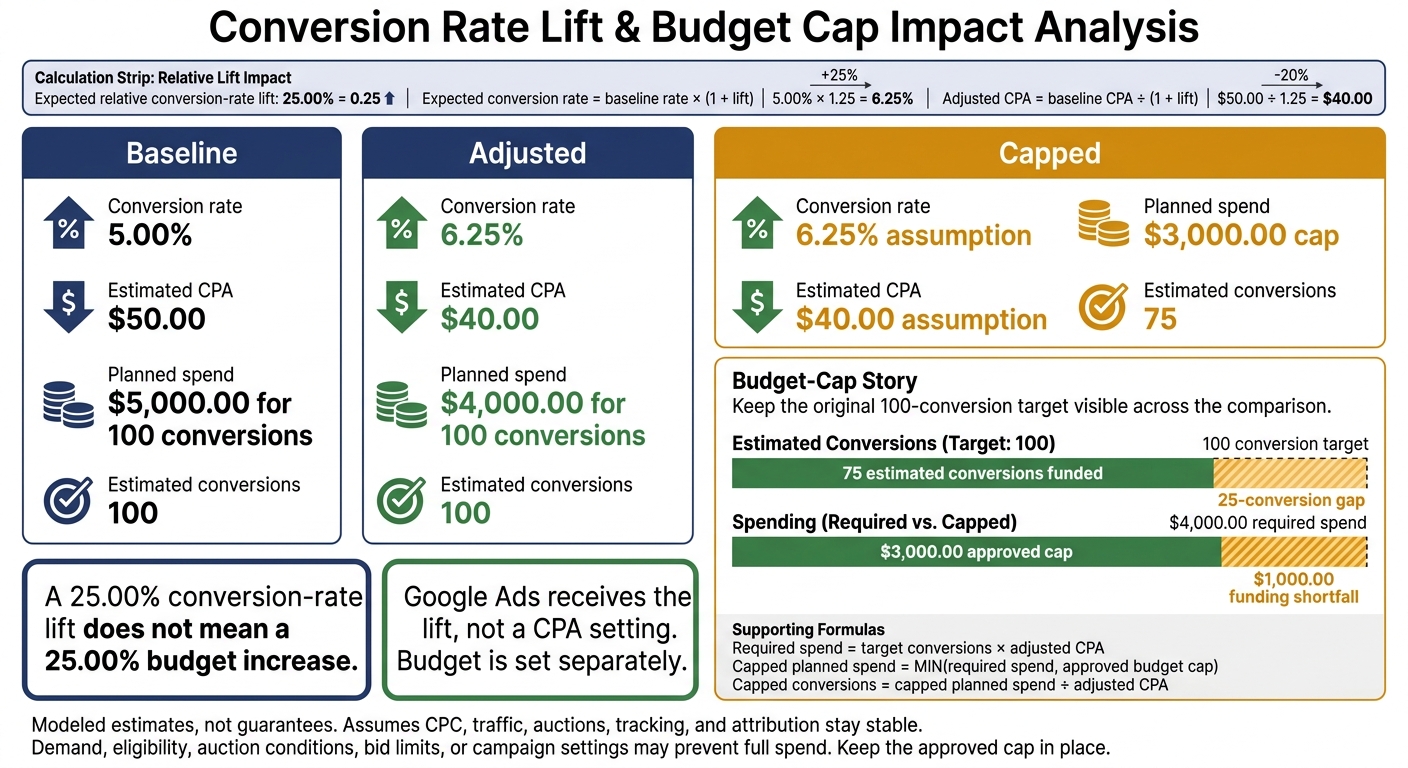
My plan keeps <u>conversion-rate lift, budget, and Search visibility separate</u>. Under stable CPC and traffic assumptions, a 25.00% conversion-rate lift lowers a modeled $50.00 CPA to $40.00. It does not mean I should increase the budget by 25.00%.
Before applying the plan, I:
- Enter baseline CPA, conversion rate, expected lift, event dates, and campaign scope.
- Compare baseline, adjusted, and budget-capped forecasts.
- Check tracking, time zones, spending limits, and conversion lag.
- Set the adjustment and budget separately, schedule the budget reset, and review results after delayed conversions arrive.
The calculator gives me a spending plan, not a promise. I keep the approved cap in place and use the final results to improve my next forecast.
Seasonality Calculator: Lift vs. Budget Cap
1. Set Calculator Inputs and Spending Limits
Enter Baseline CPA, Conversion Rate, and Expected Lift
Turn the separated levers into calculator inputs using top PPC tools. Use historical Google Ads data that matches the event type, campaign type, geography, audience, and conversion definition. For both the baseline and prior event period, record impressions, clicks, conversions, conversion rate, cost, CPA, average CPC, impression share, and conversion lag.
Note any tracking changes, promotions, or major budget or landing-page changes that could skew the comparison. Calculate baseline CPA = cost ÷ conversions and conversion rate = conversions ÷ clicks.
Estimate lift using prior promotions, tests, or modeled assumptions. Label the basis as historical, test-based, modeled, or assumption-based. When evidence is weak, use a labeled range rather than an unsupported single estimate. Relative lift multiplies the baseline rate; a percentage-point change adds to it.
Set Event Dates, Campaign Scope, and Budget Caps
Enter start and end dates as MM/DD/YYYY, along with exact times and the Google Ads account time zone. List the affected campaigns and targeting settings. Separate campaigns whose CPAs or expected lifts differ materially.
Record each campaign’s current daily budget, planned increase, event length, and total cap. Include a post-event observation window based on conversion lag, since late-reported conversions can affect the evaluation.
An approved cap does not mean equal daily spend. Google Ads can vary spending by day while staying within account limits.
Record Target Impression Share and Maximum CPC
Keep Search visibility planning in a separate block. For Search campaigns with a visibility objective, record the target impression share, placement - absolute top, top of page, or anywhere on the page - and max CPC ($).
Impression share equals received impressions divided by estimated eligible impressions. Format currency as $1,250.00 and percentages consistently to 2 decimal places.
Max CPC caps the bid, not the actual CPC. Setting it too low can prevent Google Ads from reaching the visibility target.
sbb-itb-89b8f36
Google Ads Seasonality Adjustments
2. Build or Choose a Seasonality Calculator
Turn your event inputs into a calculator that translates lift into spend, conversions, and budget-cap impact.
Use 3 blocks: Inputs, Calculations, and Validation and Outputs. Keep inputs editable, display the formulas, and tie each scenario to a campaign or campaign group. If you choose an existing calculator, require budget-cap checks, a scenario selector, an assumptions field, a change log, and exportable results - not just a final budget number.
Calculate CPA, Conversions, and Budget Needs
Enter lift as a decimal: 25.00% = 0.25. Google Ads uses seasonality adjustments to inform Smart Bidding about expected temporary conversion-rate changes. Your calculator estimates the CPA impact; Google Ads receives the lift, not a CPA setting.
Use these formulas, assuming CPC, traffic, auctions, tracking, and attribution stay stable:
Expected conversion rate = baseline rate × (1 + lift)
Adjusted CPA = baseline CPA ÷ (1 + lift)
Required spend = target conversions × adjusted CPA
Estimated conversions = planned spend ÷ adjusted CPA
Additional budget needed = MAX(0, required spend − existing allocation)
Capped planned spend = MIN(required spend, approved budget cap)
Capped conversions = capped planned spend ÷ adjusted CPA
Compare required spend with the approved cap before choosing a plan.
Set hard stops: baseline CPA must be above 0; baseline conversion rate must be between 0.00% and 100.00%; existing allocation and caps must be at least 0; lift must be above −100.00%; and the end time must be on or after the start time. Reject adjusted conversion rates above 100.00%.
Add a warning that demand, eligibility, auction conditions, bid limits, or campaign settings may prevent full spend. An event cap is a planning limit, so check it against account budget rules.
Compare Baseline, Adjusted, and Capped Scenarios
Example: a $3,000.00 cap funds 75 of 100 planned conversions, leaving a 25-conversion gap.
Conversion rate and CPA are modeled assumptions, not promised results. The capped plan leaves a $1,000.00 funding shortfall and an estimated 25-conversion gap; keep the original target visible.
| Metric | Baseline | Adjusted | Capped |
|---|---|---|---|
| Conversion rate | 5.00% | 6.25% | 6.25% assumption |
| Estimated CPA | $50.00 | $40.00 | $40.00 assumption |
| Planned spend | $5,000.00 for 100 conversions | $4,000.00 for 100 conversions | $3,000.00 cap |
| Estimated conversions | 100 | 100 | 75 |
Check Data Quality and Calculator Features
Before using the calculator’s output in Google Ads, verify tracking, eligible conversion actions, attribution, conversion windows, campaign eligibility, and event timing.
Flag delayed conversions and events outside Google Ads’ recommended 1–7-day window. Schedule a review after the relevant conversion lag.
Assess visibility separately using historical CPC, eligible impressions, lost impression share from budget or rank, and budget headroom. CPA alone cannot predict impression share.
Require editable lift assumptions, time-zone controls, and exports that include formulas, warnings, scope, and approval details.
3. Apply the Plan in Google Ads
Publish the adjustment using the calculator’s approved dates, campaign scope, and spend cap.
Set a Conversion Rate Seasonality Adjustment
In Google Ads, go to Tools → Budgets and bidding → Adjustments → Seasonal. Create a new adjustment and select Conversion rate.
Enter a name, an optional description, start and end dates and times, campaign scope, and the expected relative conversion-rate change. Use the calculator’s dates and lift estimate, match the scope to the campaigns you modeled, then save.
This adjustment only changes Smart Bidding’s conversion-rate estimate. It does not change your target CPA or ROAS.
Set the budget separately to keep spending aligned with the same event window.
Schedule Budget Changes and Rollback
Before activation, record the original budgets, schedule the temporary increase, and define when and how budgets will return to their original levels. Spending capacity is separate from the seasonal adjustment.
After the event’s end time, confirm that the conversion-rate adjustment has expired and normal budgets have resumed.
Select Conversion, Budget, or Visibility Controls
Choose the control that matches the event goal or consult top PPC agencies before editing bids or budgets.
| Approach | Primary objective | Required inputs | Primary control | Main risk |
|---|---|---|---|---|
| Smart Bidding without seasonal adjustment | Optimize conversions or conversion value under normal expectations | Conversion data, budget, target CPA or ROAS where configured | Smart Bidding strategy and target | May not respond quickly to a sharp, short-lived conversion-rate change |
| Smart Bidding with seasonal adjustment | Account for a temporary conversion-rate change | Relative lift, dates, campaign scope, existing target | Conversion rate adjustment | An inaccurate forecast can distort bidding |
| Temporary budget increase | Provide spending capacity | Approved cap, dates, scope, rollback plan | Budget adjustment or controlled edits | Additional spend may not produce incremental conversions |
| Target impression share | Pursue visibility at a selected location | Target location, impression-share target, maximum CPC ceiling | Visibility-focused bid strategy | May miss the target; a low CPC ceiling can block delivery |
For conversion goals, use Smart Bidding and add separate budget controls when you need more spending capacity. For visibility goals, check the CPC ceiling: setting it too low can prevent Target impression share from reaching its goal.
4. Review Results and Plan the Next Event
Compare Results After Conversion Lag
Wait until the conversion-lag window closes before judging performance. After the seasonal adjustment ends, use Google Ads’ conversion-lag reporting or Days to conversion data to set the review date. Then compare actual results with the calculator forecast using the same attribution setting.
| Metric | Planned value | Actual value | Variance |
|---|---|---|---|
| Conversion rate | Calculator forecast | Final event conversion rate | Percentage-point difference |
| CPA | Forecast CPA | Event spend ÷ conversions | $ difference |
| Spend | Planned event spend | Reported event spend | $ difference |
| Conversions | Forecast conversions | Lag-adjusted conversions | Count difference |
Use this comparison to separate forecast error from delivery limits. Where available, check impression share and losses due to budget or rank using PPC advertising tools. Record budget restrictions, CPC limits, and changes in average CPC or traffic mix.
Stay within the approved cap, even if conversions improve. Planned versus actual results do not prove causation.
Close the Event and Update Assumptions
After the review, close out the event in Google Ads and save the final numbers. Log the adjustment’s expiration, the budget reset, and any manual reversals. Do not add a negative adjustment simply because the promotion ended.
Save the final dates, campaign scope, forecast lift, observed lift, spend, CPA, conversion lag, and any anomalies. These records give the next calculator run a better starting assumption.
Revise the next lift assumption once conversion lag, CPC, and traffic-mix effects are clear. Keep conversion-rate assumptions separate from budget and visibility controls. Calculator outputs are estimates, not guarantees: they cannot predict auction prices, traffic volume, competition, or conversion timing.
FAQs
How can I estimate lift without past promotion data?
Estimate lift with industry benchmarks and incrementality testing, not attribution. Testing compares conversions from an ad-exposed treatment group with those from an unexposed control group:
% lift = (treatment conversions − control conversions) / control conversions
This measures lift beyond attributed conversions.
If you can’t test yet, use Google Trends to gauge market and seasonality expectations, along with budget and forecast simulations. Treat these estimates as directional until testing validates them.
How should I model rising CPCs during a sale?
Use historical year-over-year data to anticipate CPC spikes and set benchmarks. When CPCs climb 20% to 30% or more, check Auction Insights for changes in impression share or position-above rate. If those changes confirm competitor pressure, set bid caps to protect profitability.
Avoid manual seasonality adjustments that could cause volatility. Instead, rely on Smart Bidding and automated triggers to pause underperforming ads or shift budget based on real-time ROAS.
What should I do if actual lift misses my forecast?
Review campaign metrics promptly to spot underperformance. Move budget to better-performing campaigns and adjust bids to match current consumer trends. Revisit targeting and bidding when conversion rates fall sharply or CPA exceeds your targets.
Keep changes within 10–15% and monitor results for at least 2 weeks before making another adjustment. For advanced campaign management, use automated bid triggers or tools from the Top PPC Marketing Directory to maintain efficiency without manual intervention.