If your tracking breaks, ad platforms can optimize against bad data and waste money. My short take: I use Tag Assistant for Google Ads, GA4, and GTM, and I use UET Tag Helper for Microsoft Ads, UET goals, and remarketing checks.
Here’s the article in plain English:
- Tag Assistant fits the Google stack
- UET Tag Helper fits the Microsoft Ads stack
- Both tools check tag firing on-page
- Neither tool proves full attribution, click ID transfer, or final reporting credit
- If I run ads on both platforms, I want both browser extensions installed
A few points stand out right away:
- Tag Assistant can help when Google Ads shows statuses like “Unverified” or “Tag inactive”
- UET Tag Helper helps because Microsoft Ads status updates can take up to 24 hours
- Tag Assistant works in Chrome
- UET Tag Helper works in Edge and Chrome
- UET Tag Helper goes further on goal matching and audience list checks inside the Microsoft setup
5 MUST HAVE Chrome Extension for Verifying Tracking Tag/Pixel Code
sbb-itb-89b8f36
Quick Comparison
| Criteria | Tag Assistant | UET Tag Helper |
|---|---|---|
| Best for | Google Ads, GA4, GTM | Microsoft Ads |
| Main use | Check Google tags and GTM events | Check UET tags, goals, and audiences |
| Browser support | Chrome | Edge, Chrome |
| Event debugging | Yes | Yes |
| Goal validation | Google conversion checks | Microsoft goal match checks |
| Audience testing | Limited | Yes |
| Works outside its own ad platform | No | No |
What I like about this comparison is that it stays narrow: which tool checks which tracking problem. That makes the answer simple. Use the Google tool for Google tracking, and the Microsoft tool for Microsoft tracking. If you care about clean conversion data before spending more than you should, that’s the right place to start.
Google Tag Assistant: Built for Google Ads and Google Tag Manager
Google Tag Assistant is a Chrome tool that checks Google Ads, GTM, and Google Analytics tags while you browse. It works in two modes.
The first is a side panel. It shows which Google tags are on the current page and uses color coding to flag problems fast. The second is a session mode at tagassistant.google.com. That mode records a full session and shows an event stream with what fired, when it fired, and which parameters were sent.
Setup Steps in Chrome
Install the Tag Assistant extension from the Chrome Web Store, then use one of these paths.
For Google Ads troubleshooting, go to Goals → Summary → View all conversion actions. Find the conversion with a problem status, hover over it, and click Troubleshoot. Enter a starting URL and click Connect. Tag Assistant will open your site with a session attached.
For GTM checks, go to tagassistant.google.com, add your domain, and connect. Then move through your conversion funnel while Tag Assistant logs each event. When you're done, click Finish to review the session.
What Tag Assistant Catches
These checks matter because bad Google data can throw off bidding. Tag Assistant is most useful when Google Ads shows conversions as "Unverified" or "Tag inactive."
It helps surface the problems that usually sit behind those statuses:
- Missing AW- conversion tags
- Wrong conversion IDs or labels
- Zero or missing conversion values
- Tags firing on the wrong page
- Duplicate firing when both a global site tag and a GTM-based tag send the same hit
For GTM-based setups, Tag Assistant also ties into GTM Preview mode. You can see whether a trigger fired or did not fire, whether data layer variables resolved as expected, and why a tag did or didn't fire on a given event.
If you need to hand the session to a developer or agency partner, you can share the .json file for offline review.
It checks Google tags only. It does not validate Microsoft UET tags, goals, or audiences. For Microsoft Ads tracking, use the matching check in UET Tag Helper.
Microsoft UET Tag Helper: Built for UET Tags, Goals, and Audience Checks
For Microsoft Ads, UET Tag Helper plays the same troubleshooting role. It checks Universal Event Tracking (UET) tags on live pages and helps verify conversion goals and audience lists. Microsoft Advertising status can take up to 24 hours to update, so UET Tag Helper gives you browser-side feedback right away.
Setup Steps in Edge or Chrome
Install UET Tag Helper from the Edge Add-ons store or Chrome Web Store, then pin it to your toolbar. Turn it on for the tab, refresh the page, and walk through the conversion path from the landing page to the confirmation page. Then use the extension to check tag firing, goal matching, and audience signals.
What UET Tag Helper Validates Beyond Tag Presence
The panel shows which UET tag IDs it found, which pageview and custom events fired, and whether those events line up with the conversion goals set in Microsoft Advertising.
For conversion goal testing, it can point out problems like the wrong event type, missing parameters, or a bad goal setup. It also suggests fixes in the Results tab. That gives e-commerce teams a simple way to check revenue and product IDs using top PPC tools, while B2B teams can test custom events like form_submit.
For audience and remarketing checks, it verifies that the right product IDs, page types, and event categories fire on the pages meant to build those lists. If a pricing page or cart page misses the event you expect, you’ll see it at once. That makes the extension handy for side-by-side checks with Tag Assistant.
It works for Microsoft Ads only.
Tag Assistant vs UET Tag Helper: Side-by-Side Comparison
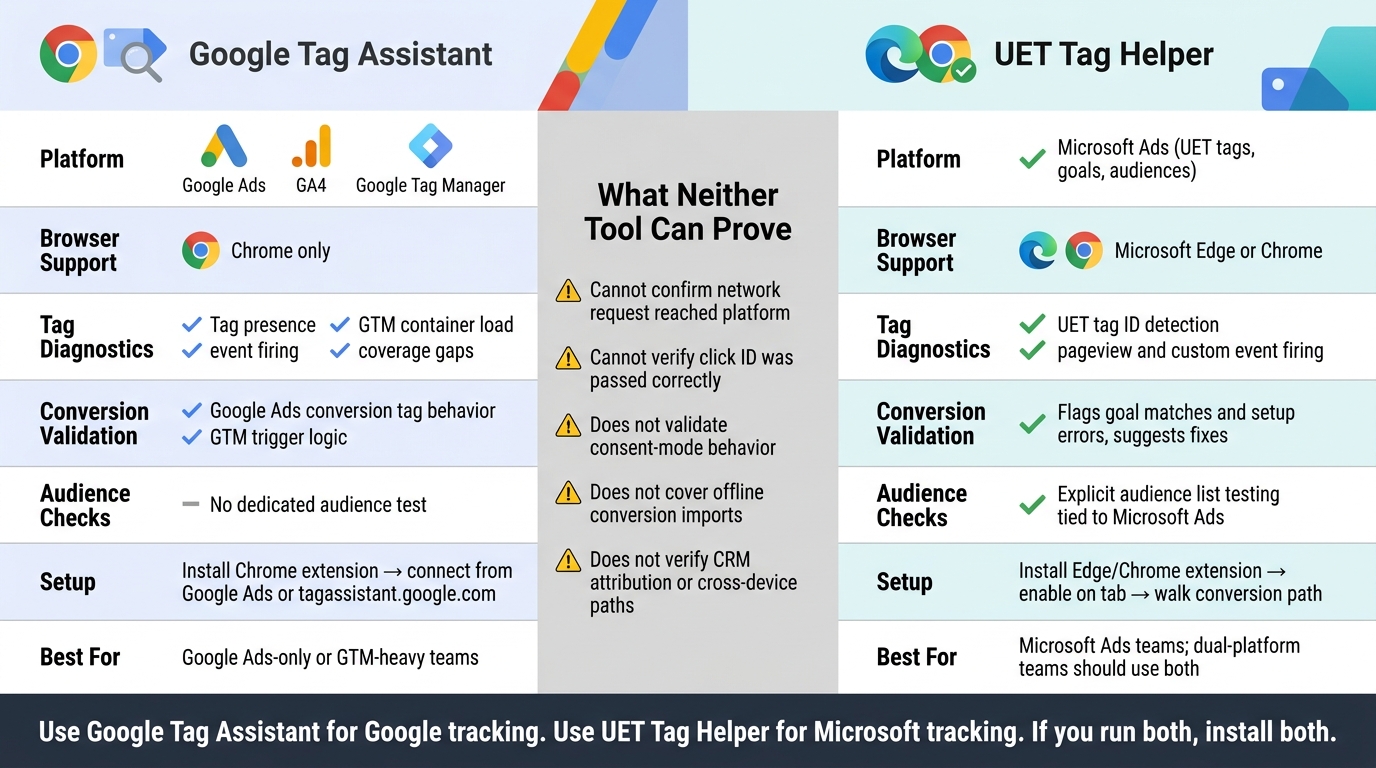
Tag Assistant vs UET Tag Helper: Side-by-Side Tool Comparison
Use this side-by-side view to compare what each tool checks, what it misses, and which ad stack it fits. The table below narrows the comparison to the QA details that matter most.
Comparison Table: Features, Browser Support, and Team Fit
| Feature | Google Tag Assistant | Microsoft UET Tag Helper |
|---|---|---|
| Platform ecosystem | Google Ads, GA4, GTM | Microsoft Ads (UET and audience checks) |
| Browser support | Chrome only | Microsoft Edge or Chrome |
| Setup flow | Chrome extension; connect from Google Ads or tagassistant.google.com | Edge/Chrome extension; enable on tab and test the path |
| Tag diagnostics | Tag presence, event firing, GTM container load, tag coverage gaps | UET tag ID detection, pageview and custom event firing |
| Conversion validation | Validates Google Ads conversion tag behavior and GTM trigger logic | Flags goal matches and setup errors, then suggests fixes |
| Audience checks | No dedicated audience test; event validation can support remarketing | Explicit audience list testing tied to Microsoft Ads audience setup |
| Best team fit | Google Ads-only or GTM-heavy teams | Microsoft Ads-only teams; dual-platform teams should use both tools |
Where Each Tool Falls Short
The main gap is not what these tools show. It's what they can't prove.
Both tools only check page-level setup. They can confirm that a tag fired on the page, but they can't confirm that the network request reached Google or Microsoft, that the right click ID was passed, or that the conversion will be credited the right way in platform reporting.
They also don't fully verify:
- consent-mode behavior
- offline conversion imports
- CRM attribution
- cross-device conversion paths
Tag Assistant confirms tag firing, not attribution or click-ID transfer.
If your team tracks revenue, CAC, or pipeline metrics, browser-level validation is just the first checkpoint. Platform reporting, DevTools network inspection, and periodic audits help fill in the gaps.
That leaves one last practical question: which stack should use which tool?
Recommendation: Which Tool to Use
Pick the tool based on the ad stack you're checking. The choice is pretty simple. Both are free PPC advertising tools, so it comes down to which platform you need to verify.
Best Choice by Ad Stack
Google Ads and GTM teams should use Tag Assistant. It works closely with Google Ads troubleshooting and GTM Preview, so it's the standard QA tool for Google tags. If a conversion shows as unverified or inactive, Tag Assistant is often the fastest way to find the problem.
Microsoft Ads teams should use UET Tag Helper. It's built to check UET conversion goals and audience lists in real time, instead of making you wait up to 24 hours for status updates in the platform. That kind of instant check helps catch failures before they hit bidding and reporting.
If your team uses both ad stacks, check them separately. In practice, that means using Tag Assistant for Google and UET Tag Helper for Microsoft Ads. This helps you spot platform-specific issues that one tool alone won't show - like a page where Google tags fire as expected, but a UET goal fails on that same page.
FAQs
Which tool should I use if I run both Google Ads and Microsoft Ads?
Use both Google Tag Assistant and Microsoft UET Tag Helper. Each tool checks its own platform’s tags, so one does not replace the other.
A simple way to handle setup is to use Google Tag Manager to deploy both tags. Then use each helper tool to make sure events are firing the right way for its platform.
Can either tool confirm attribution or click ID tracking?
No. Neither Google Tag Assistant nor Microsoft UET Tag Helper can confirm attribution or click ID tracking like GCLID or MSCLKID on their own.
What they can show you is that tags are firing and data is being sent. What they can't tell you is whether those click IDs stick around or match up the right way for offline conversion tracking.
To check that part, you need to pass those IDs into your CRM or use server-side tracking.
How do I test remarketing and audience setup in Microsoft Ads?
Use the Microsoft UET Tag Helper browser extension to check that your UET tag is firing on your site. Place the tag in the site’s header or footer so it can record user actions.
For audience association and campaign setup checks, use Microsoft Advertising Editor to review campaign settings and audience setups. If you use Google Tag Manager, it can help you verify tag behavior before launch.